To view your assignments:
1. Log in to Sandler Online at Learn.Sandler.com.
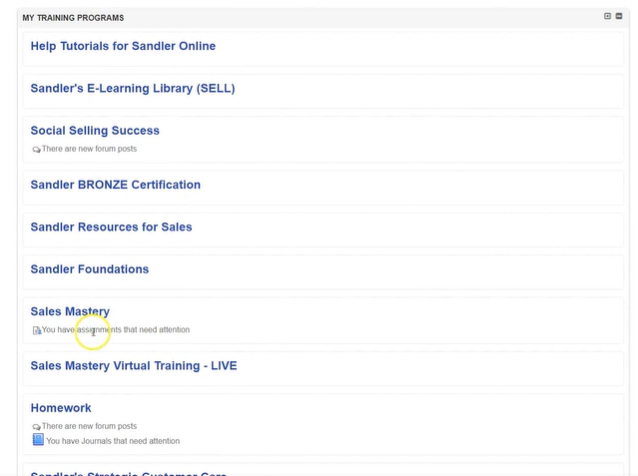
2. On your Dashboard, under My Training Programs, if there is an assignment pending, it will notify “You have assignments that need attention” under the course the assignment is for. Click on the course to view assignment.
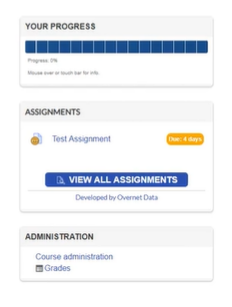
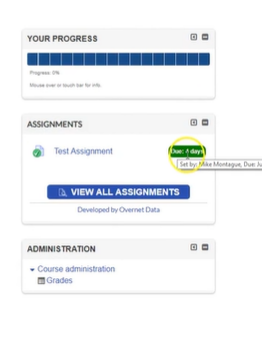
3. On the right hand side, in the Assignments box select Assignment to view.
4. Download and complete the assignment.
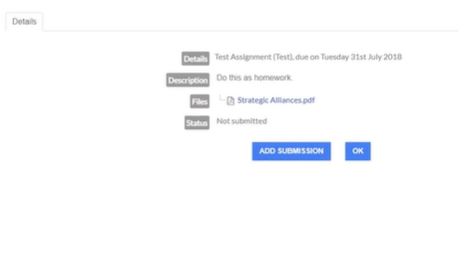
5. When ready to submit, select Add Submission button.
6. Upload assignment or use the Online Text box. Select Save Changes when done.
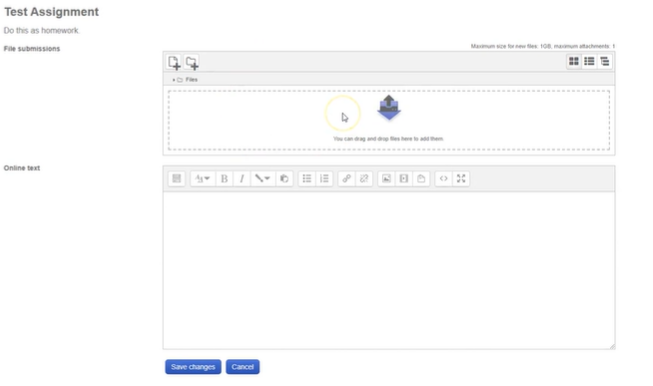
Note: Some assignments will not need a file upload or text submission. Some will just need to be marked complete.
To view completed assignment, go back to the course page, the assignment should now show green.
Assignments FAQ’s
How can I locate my homework assignment from my trainer?
You would have received a personal email from your trainer if he/she created your assignment via Outlook or an assignment drip.
If your trainer created your assignment directly in Sandler Online, the email would have come from noreply@sandler.com. Check you junk, spam and clutter folder if you cannot locate the assignment. Please whitelist noreply@sandler.com and no-reply@sandler.com so you will be able to receive future assignments.
For more help, please see Viewing Your Homework Assignments
Comments
0 comments
Please sign in to leave a comment.