Purpose:
This report provides activity details and grades for all users in a course.
Report Permissions:
Reports are role based and the role controls report parameters such as learners and displayed fields.
Report roles:
Administrative-This role enables LMS administrators the most comprehensive access. This includes all users and additional administrative fields in the report display.
Executive- This role is assigned to users in a role requiring data from their managers and their direct reports.
Manager- This role allows reports to be generated for direct reports only. The manager can only see report data for learners with their email address in the manager field.
Trainer-This role is assigned to the organization trainer, or anyone needing to manage reports and data for the organization or franchise.
Please note: The reports used in this article are generated under the Executive role and may vary slightly based on your role assignment.
Step 1. Log into the LMS by going to learn.sandler.com
Step 2. If you are a trainer click Trainer Links and Trainer Reports. If you are a manager/executive select the report that corresponds to your role. This also applies to admins. Selecting the correct role is key in obtaining the correct report.
Step 3. Go to the reports menu under your role and select B. Course Activity Progress Report.
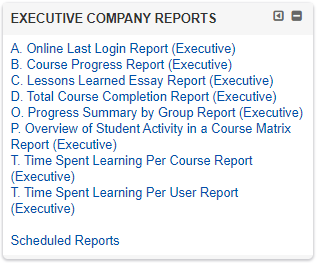
- A report filter will appear with parameters for the report.
- Filter the following fields for best results:
- Course: Using the dropdown menu select the desired course
- Group: Find and click on Group(s) to select for the report (selected groups will be highlighted in blue)
- Click OK and wait for the report to populate.
- Once the report has populated, select an option to view:
- Export to PDF
- Export to Excel
- Send as Email (least recommended)
Note: This report can be VERY detailed and large if not filtered properly. It may be best to Schedule this Report. You may schedule the report by following the directions here.
Report fields displayed:
- Participant Name
- Participant Email Address
- Course
- Last Course Access Date
- Course Enrollment Date
- Course Status
- Organization
- Group
- Company
- Manager Email Address
- Date Completed
- Course Status
- Activity
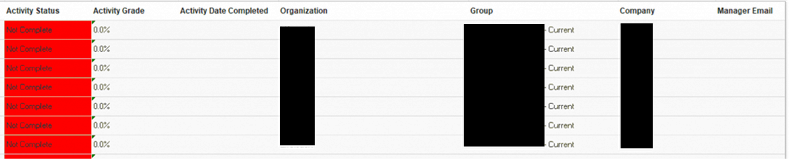
- Activity Status
- Activity Date Completed
- Activity Grade

Comments
0 comments
Please sign in to leave a comment.