Purpose:
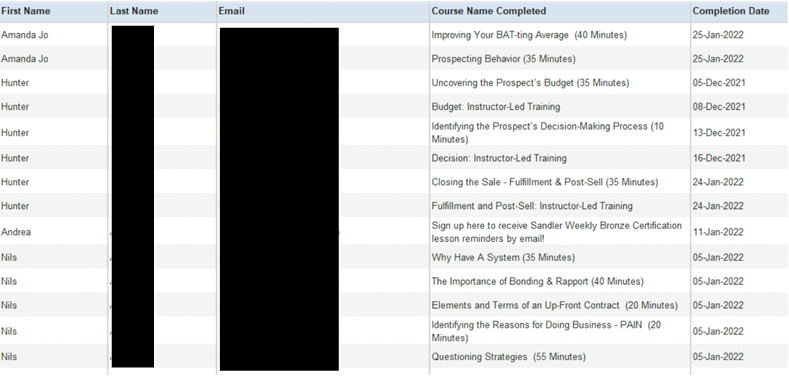
This report shows all courses completed by learner.
Step 1.
- Log in to the LMS by going to Learn.Sandler.com.
- Click on SSI Reports on the top menu bar.
- From the Reports box on the left, select Report.
Report Permissions:
Reports are role based and the role controls report parameters such as learners and displayed fields.
Report roles:
Administrative-This role enables LMS administrators the most comprehensive access. This includes all users and additional administrative fields in the report display.
Executive- This role is assigned to users in a role requiring data from their managers and their direct reports.
Manager- This role allows reports to be generated for direct reports only. The manager can only see report data for learners with their email address in the manager field.
Trainer-This role is assigned to the organization trainer, or anyone needing to manage reports and data for the organization or franchise.
Please note: The reports used in this article are generated under the Executive role and may vary slightly based on your role assignment.
Step 2.
- A report filter will appear with parameters for the report.
- Filter the following fields for best results:
- Course: Using the dropdown menu select the desired course
- Group: Find and click on Group(s) to select for the report (selected groups will be highlighted in blue)
- Click OK and wait for the report to populate.
- Once the report has populated, select an option to view:
- Export to PDF
- Export to Excel
- Send as Email (least recommended)
What information is included in the report?
- Participant's Name
- Participant's Email Address
- Name of Course Completed
- Completion Date
Comments
0 comments
Please sign in to leave a comment.