Objective: This job aide describes the steps to complete the Portal Removal form and submit for processing.
Solution: Bulk Portal removal is completed by moving users from their existing portal and placing them in a newly created portal called “Inactive Users”. This allows user records to migrate from their original portal to this Inactive Users portal. No records are deleted, and the solution removes the users from displaying on reports.
View the Inactive Users Portal by navigating to: https://shop.sandler.com/admin/sandler/organizations and searching for Inactive Users. The image below shows the Inactive Users Portal

Step 1.
Prepare the import file with user information to unenroll. Go to and complete the fields. Following the steps are critical for a successful import. Import template can be downloaded at the end of this article.
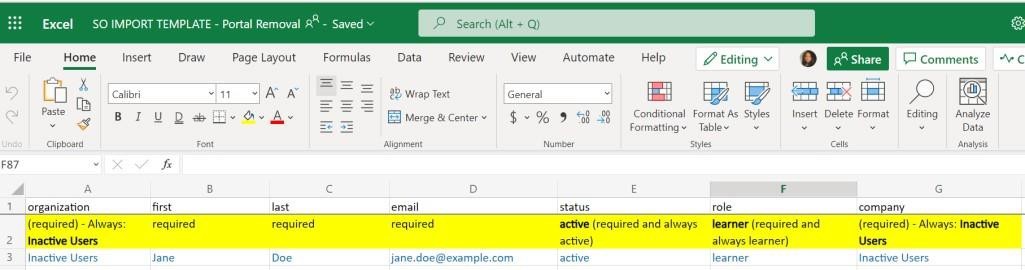
Organization-Must display Inactive Users
Company- Must display Inactive Users
Remove any blank optional rows
Tip: Make sure the import file does not have formatting or hyperlinks
Step 2.
Save the file leading with current organization name, date, inactive users.xls
Example: Medtronics4.20.22 Inactive Users.xls
Submit the Import file through the Sandler Online Chat Icon or email us at: courseware@sandler.com
Download the import template for unenrollment below.
Comments
0 comments
Please sign in to leave a comment.