Step 1. Navigate to the Groups menu to Add a Participant to a Group.
- Log into the LMS by going to Learn.Sandler.com
- Click on Sandler Online Administration.
- Go to Sandler Online menu and click Organization List.
- Search for Organization and click to access account.
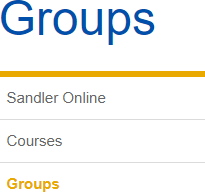
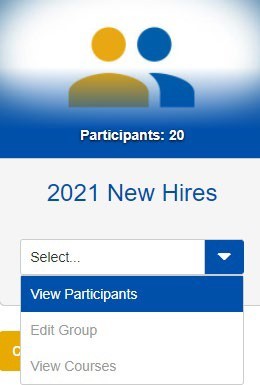
Step 2. Locate Groups (on left). From the drop down menu, select View Participants to display the list of users.
Step 3. Select View Participants from the dropdown menu.
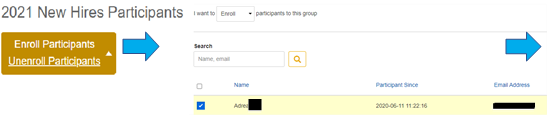
Step 4. Click the Enroll Participants link. Use the search box to find participant and then check the box next to their name. Then click the Next: Invite Email button.

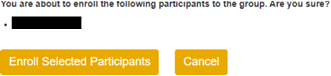
Step 5. Select Enroll Selected Participants button to complete.
Email Tips:
- An email template will be generated. Click "I do not want to email these participants" to opt out of sending the user email notification.
- If emailing, select "New" or "Existing" email template
- Choose "New" to manually edit email to user
Comments
0 comments
Please sign in to leave a comment.